
Browser Storage & Recovery
Kleki has two ways to keep your drawing inside your browser: Browser Storage, which you use yourself, and tab recovery, which works in the background. Neither replaces saving a file. Browser data can be cleared by the browser, the operating system, or cleanup tools.
Browser Storage
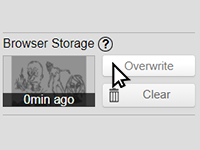
Section titled “Browser Storage”Browser Storage keeps a snapshot of one image, including its layers, in your browser. You find it in the File tab.
- Store saves the current image. If a different image is already stored, Kleki asks before overwriting it.
- Open opens the stored image.
- Clear deletes the stored image.
- Ctrl + Shift + S stores right away.
When you start Kleki and something is stored, a small banner offers to open it.
Browser Storage doesn’t save automatically. Store again whenever you want to update the snapshot.
If Storing Fails
Section titled “If Storing Fails”Kleki lists the possible causes:
- Out of disk space. Free up space on your device.
- Storage disabled in incognito tab. Private and incognito windows usually block storage. Use a normal window.
- Browser doesn’t support storage.
“Can’t access storage.” means your browser blocked Kleki from using storage, for example because of privacy settings or an extension.
Tab Recovery
Section titled “Tab Recovery”Tab recovery protects you if a tab reloads or closes by accident. It’s not a full autosave.
- After about 5 minutes of drawing, Kleki stores a recovery of the tab, and then updates it about every minute while you work.
- If the tab reloads, Kleki restores its recovery automatically.
- Recoveries are deleted after 7 days, and the oldest ones are removed when they take up too much space.
Recover Closed Tabs
Section titled “Recover Closed Tabs”In the File tab, click Recover closed tabs. A number on the button shows how many recoveries there are. The panel lists them:
- Recover opens the drawing in a new tab.
- Delete removes the recovery.
Recoveries only exist in the browser and browser profile you drew in. They’re gone when your browser’s data for kleki.com is deleted. See My Recovery Is Missing for common reasons.
Prevent Browser Refreshes
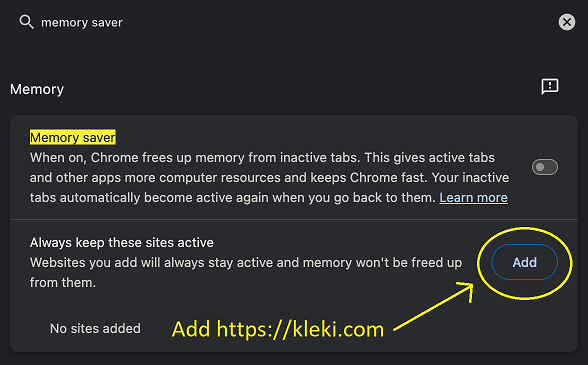
Section titled “Prevent Browser Refreshes”Chrome and some other browsers have a memory saver that unloads tabs you haven’t looked at in a while. When you switch back, the tab reloads. Tab recovery usually brings your drawing back, but recent changes can be lost.
To prevent this in Chrome:
- Open
chrome://settingsand search for memory saver. - Next to Always keep these sites active, click Add and enter
https://kleki.com.
We recommend adding Kleki to that list rather than turning off memory saver.
Other browsers have similar settings, for example Sleeping tabs in Edge.