Selection & Transform
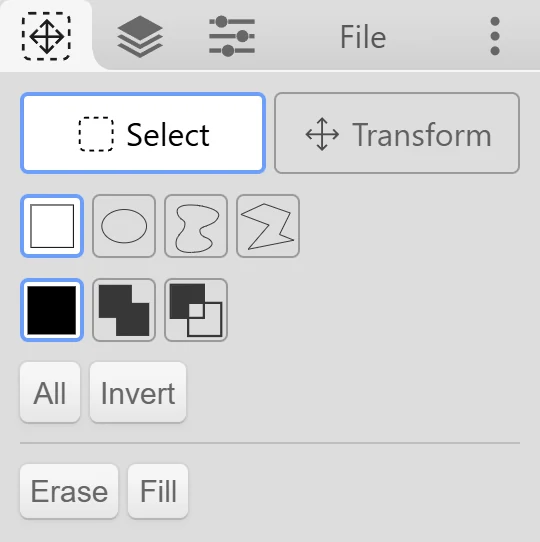
The  Select Tool (L) has two modes, switched at the top of its tab:
 Select: mark the area you want to work on.
 Transform: move, scale, rotate, flip, or warp the selected part of the active layer.
Making a Selection
Section titled “Making a Selection”Pick a shape, then drag on the canvas:
 Rectangle and
  Ellipse: drag from corner to corner. Hold Shift while dragging for a perfect square or circle.
 Lasso: draw the outline freehand.
 Polygon: click to add points. Click the first point, or double-click (double-tap), to close the shape. Esc cancels.
Adding and Subtracting
Section titled “Adding and Subtracting”Choose how a new selection combines with the existing one:  Replace,
  Add, or
  Subtract. In Replace mode you can also hold a key when you start dragging:
- Shift adds to the selection.
- Alt subtracts from the selection. (In the Select Tool, Alt doesn’t pick a color.)
Moving the Outline
Section titled “Moving the Outline”Drag inside the selection to move the outline without moving any pixels. A click without dragging removes the selection.
Selection Buttons
Section titled “Selection Buttons”- All selects the whole canvas.
- Invert swaps selected and unselected areas.
 Reset removes the selection.
- Erase clears the selected area on the active layer.
- Fill fills the selected area with the primary color.
While a selection exists, an icon appears at the bottom left of the canvas. Click it to remove the selection.
What a Selection Affects
Section titled “What a Selection Affects”While a selection exists, these only change the selected area:
- all brushes, the paint bucket, gradient, shapes, and text
- Delete / Backspace (clears the selection) and Enter (fills the selection)
- most filters in the Edit tab
Transform
Section titled “Transform”Switch to Transform at the top of the tab, or press L again. Kleki transforms the selected area of the active layer, or the whole layer if nothing is selected.
- Drag inside to move. Drag the handles to scale and rotate.
- Hold Shift while moving to stay on one axis. Hold Shift while rotating to snap to 45° steps.
- Arrow keys (← ↑ ↓ →) nudge it by a pixel.
The buttons and options:
| Control | What it does |
|---|---|
 Clone Clone | Stamps a copy at the current position, so you can keep moving the original. |
| Flip X / Flip Y | Mirrors horizontally or vertically. |
| -90° / +90° | Rotates in 90° steps. |
| 2× / ½× | Doubles or halves the size. |
| Center | Moves it to the middle of the canvas. |
 Warp Warp | Bends the image with a grid instead of handles. |
| Constrain | Keeps the proportions while scaling. |
| Snap | Snaps rotation and position. |
| Smooth / Pixelated | Choose Pixelated to keep hard pixel edges when scaling, for example for pixel art. |
| Move to layer: | Moves the result to a different layer. |
| Transparent Background | Only on the bottom layer. Decides whether the area you moved away from becomes transparent or white. |
Applying or Canceling
Section titled “Applying or Canceling”- Enter applies the transform.
- Esc discards it.
- Switching to another tool also applies it. The exception is the Hand Tool: you can switch to it to move the view, then come back and keep transforming.
If the selected area of the active layer is empty, Kleki tells you “Selected area on active layer is empty.” Check that the right layer is active.
Related
Section titled “Related”- Layers: transforms and selections work on the active layer.
- Edit tab: Transform and Perspective are also available as filters.
- Keyboard & Touch Shortcuts