Edit Tab: Filters & Adjustments
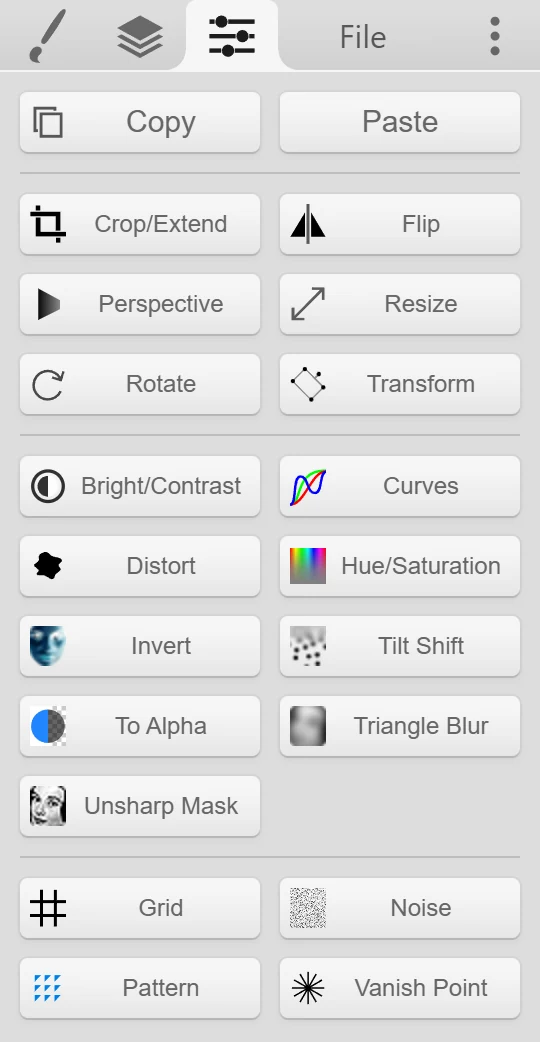
The  Edit tab holds Kleki’s filters and adjustments. At the top are Copy and Paste. Below them, the filters come in three groups.
Most filters change only the active layer. Filters that change the whole image say so below. Most dialogs show a preview, so you can see the result before you apply it.
Copy and Paste
Section titled “Copy and Paste” Copy opens the Copy To Clipboard dialog. If something is selected, Mask unselected copies only the selected area. Click To Clipboard to copy. If your browser can’t copy images directly, right-click or long-press the preview and copy it from there.
- Paste imports an image from the clipboard. See Importing Images.
Ctrl + C opens the same dialog with a crop option. Drag to crop the area you want to copy, or use Apply Crop to crop the canvas itself.
Geometry
Section titled “Geometry”| Filter | What it does |
|---|---|
 Crop/Extend Crop/Extend | Crops the whole image or adds space around it. Drag in the preview or enter the margins. Fill picks the color of new space. |
 Flip Flip | Mirrors horizontally or vertically. Choose Flip Image for the whole image, or Flip Layer for the active layer. |
 Perspective Perspective | Distorts the active layer by dragging its four corners. |
 Resize Resize | Changes the size of the whole image. Choose Smooth for photos and paintings, or Pixelated to keep pixel art sharp. |
 Rotate Rotate | Rotates the whole image by 90° to the left or right. |
 Transform Transform | Moves, scales, rotates, and flips the active layer, with exact values. The Select Tool can do the same interactively. |
Color and Detail
Section titled “Color and Detail”| Filter | What it does |
|---|---|
 Bright/Contrast Bright/Contrast | Changes brightness and contrast. |
 Curves Curves | Adjusts tones with curves, for all channels together or for red, green, and blue separately. |
 Distort Distort | Adds wavy distortion. |
 Hue/Saturation Hue/Saturation | Shifts the colors and makes them more or less saturated. |
 Invert Invert | Inverts the colors. Applies right away. |
 Tilt Shift Tilt Shift | Blurs the top and bottom while keeping a band sharp, for a miniature look. |
 To Alpha To Alpha | Turns brightness into transparency. Inverted Luminance (the default) makes white transparent and keeps dark lines. Luminance does the opposite. Replace RGB can recolor the result, for example in black. |
 Triangle Blur Triangle Blur | Blurs the layer. |
 Unsharp Mask Unsharp Mask | Sharpens. |
Generators
Section titled “Generators”These draw something new onto the active layer.
| Filter | What it does |
|---|---|
 Grid Grid | Draws a grid. |
 Noise Noise | Adds noise. |
 Pattern Pattern | Repeats part of the layer as a tiling pattern. |
 Vanish Point Vanish Point | Draws perspective guide lines from a vanishing point. Draw them on their own layer so you can hide them later. |
Filters and Selections
Section titled “Filters and Selections”If something is selected, most color and detail filters only change the selected area.
Filters Are Disabled
Section titled “Filters Are Disabled”Many filters need WebGL, a browser feature for graphics. If it doesn’t work in your browser, these filters are grayed out and the Edit tab says “Features disabled because WebGL is failing.”
To fix it:
- Turn on hardware acceleration in your browser settings. In Chrome and Edge it’s called Use graphics acceleration when available. Restart the browser.
- Update your browser and your graphics drivers.
- Try another browser.