Layers
Layers let you keep parts of your drawing separate, for example the sketch, the line art, and the colors. You can then change one part without touching the others. Open the  Layers tab to see them.
The Layers Panel
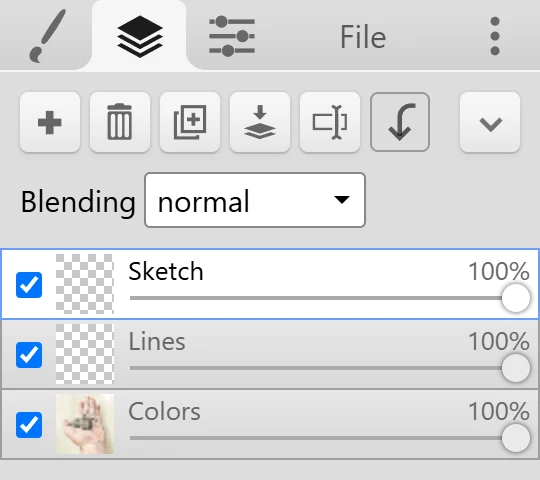
Section titled “The Layers Panel”The buttons at the top work on the active layer:
| Button | What it does |
|---|---|
 New Layer New Layer | Adds an empty layer above the active one. |
 Remove Layer Remove Layer | Deletes the active layer. |
 Duplicate Layer Duplicate Layer | Copies the active layer. |
 Merge with layer below Merge with layer below | Combines the active layer with the layer under it. |
 Rename Rename | Renames the active layer. |
 Clipping Mask Clipping Mask | Clips the active layer to the layer below. See Clipping Mask. |
 More More | Opens a menu with Clear layer, Advanced merge, and Merge all. |
Each layer in the list has a visibility checkbox, a thumbnail, its name, and an opacity slider. Click a layer to make it the active layer. Most tools and filters only change the active layer.
The Blending dropdown sets the blend mode of the active layer.
Reorder and Rename
Section titled “Reorder and Rename”- Drag a layer up or down in the list to change the order. Layers higher in the list are drawn on top.
- Double-click the layer name, or click Rename, to rename it. The dialog suggests common names, such as Sketch, Lines, and Colors.
Opacity and Blend Modes
Section titled “Opacity and Blend Modes”The opacity slider makes the whole layer more transparent without changing its pixels. You can turn it back up at any time.
The blend mode decides how a layer mixes with the layers below it. Kleki has 16: normal, darken, multiply, color burn, lighten, screen, color dodge, overlay, soft light, hard light, difference, exclusion, hue, saturation, color, and luminosity.
A few common uses:
- multiply darkens. Use it for shadows, or put it on a line art layer drawn on white paper so the white disappears.
- screen and color dodge lighten. Use them for highlights and glow.
- overlay and soft light add contrast and color tints.
- color changes the color of the layers below but keeps their light and dark values.
The Bottom Layer Is Your Background
Section titled “The Bottom Layer Is Your Background”The bottom layer acts like paper. On the bottom layer:
- The Eraser paints white instead of erasing to transparency.
- Clear layer (and Delete or Backspace) turns the painted pixels white.
To get real transparency, turn on Transparent Background in the Eraser settings. With it on, the eraser and Clear layer make the bottom layer transparent. You can also start a new image with a transparent background. Then save as PNG. See How do I make a transparent background?
Merging Layers
Section titled “Merging Layers”- Merge with layer below combines the active layer with the one under it, using the active layer’s opacity and blend mode. It isn’t available on the bottom layer.
- Merge all (in More) flattens every layer into one.
- Advanced merge (in More, or Ctrl + Shift + E) opens the Merge/Mix Layers dialog. Pick a mix mode and check the preview before you merge. ← and → switch between the modes.
The first mode in Advanced merge is the layer’s own blend mode. The others are compositing operations:
| Mode | Result |
|---|---|
| source-in | Keeps the upper layer only where the lower layer has pixels. The lower layer’s own pixels are removed. |
| source-out | Keeps the upper layer only where the lower layer is empty. |
| source-atop | Paints the upper layer onto the lower layer’s pixels only, like a clipping mask that is then merged. |
| destination-in | Keeps the lower layer only where the upper layer has pixels, like a stencil. |
| destination-out | Cuts the shape of the upper layer out of the lower layer. |
| destination-atop | Keeps the lower layer only where the upper layer has pixels, with the upper layer showing behind it. |
| xor | Keeps only the parts where the two layers don’t overlap. |
Layer Limit
Section titled “Layer Limit”An image can have up to 16 layers. When you reach the limit, merge layers to make room. See Limits.
Layers in Saved Files
Section titled “Layers in Saved Files”- PSD keeps your layers with their names, visibility, opacity, blend modes, and clipping masks.
- PNG and JPG flatten everything into one image.
- Layers (PNG) saves each layer as its own PNG file.
See File Formats for details.