
Importing Images
Ways to Import
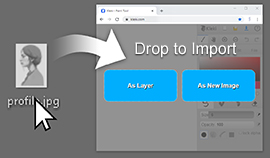
Section titled “Ways to Import”- Drag and drop a file onto the canvas. Drop it on As Layer or As New Image.
- Click
 Import in the top row or in the File tab.
- Paste with Ctrl + V (Cmd + V on a Mac), or with Paste in the Edit tab.
Video: Importing images (2:51)
The Import Dialog
Section titled “The Import Dialog”- Import Image shows a preview. Drag over it to crop the image before importing.
- Choose As Layer to add it to your drawing, or As Image to start a new image with it.
- With As Layer, a second dialog lets you place it. Drag and scale it with the handles, or use Fit or Center. Then click Ok.
If the image is larger than the maximum canvas size, Kleki scales it down.
Supported Formats
Section titled “Supported Formats”Kleki can import any image your browser can open, plus PSD files:
- PNG, JPEG, and WebP always work.
- GIF works, but only the first frame of an animated GIF is imported.
- BMP, SVG, AVIF, and on Safari HEIC work if your browser supports them.
- PSD works with some limits. See PSD files.
If Kleki says “Unsupported file type”, convert the file to PNG first.
You can paste three things:
- An image, for example a screenshot or an image you copied in another app. The import dialog opens.
- A link to an image. This only works if the website allows it. If nothing happens, download the image and import the file instead.
- A color code like
#ff8800. It becomes your primary color.