On a Mac, use Cmd instead of Ctrl. Tooltips in Kleki also show the key for each tool.
Video: Shortcuts (9:49)
| Tool | Shortcut |
|---|
| Brush. Press again to switch to the next brush | B |
| Eraser | E |
| Toggle the eraser of the Pixel and Chemy brush | Shift + E |
| Paint Bucket. Press again for Gradient | G |
| Text | T |
| Shape | U |
| Select Tool. Press again for Transform | L |
| Hand Tool | H |
Hold the key or button to switch to another tool for a moment. Let go to return to your tool.
| Action | Shortcut |
|---|
| Eyedropper | Hold Alt, or right mouse button |
| Move the view | Hold Space, or middle mouse button |
| Zoom | Hold Z and drag left or right |
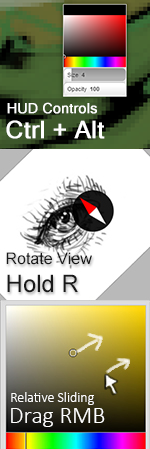
| Rotate the view | Hold R and drag. Add Shift to snap |
| HUD color picker, size, and opacity | Hold Ctrl + Alt |
In the Select Tool, Alt subtracts from the selection instead of picking a color.
| Action | Shortcut |
|---|
| Move the view | ← ↑ ↓ → |
| Zoom in / out | + / -, or the scroll wheel |
| Zoom in finer steps | Hold Shift with + / - or the scroll wheel |
| Rotate by 15° | Hold R and press ← or → |
| Reset rotation | R + ↑ |
| Flip the view | M |
| Fit into view | Home, or double-click with the Hand Tool |
| Zoom in 2× (when already fitted) | Double-click with the Hand Tool |
| Reset view | End |
More in Navigating the Canvas.
| Action | Shortcut |
|---|
| Undo | Ctrl + Z |
| Redo | Ctrl + Y, or Ctrl + Shift + Z |
| Brush size smaller / larger | [ / ] |
| Swap primary and secondary color | X |
| Fill the layer, or the selection, with the primary color | Enter |
| Clear the layer, or the selection | Delete or Backspace |
| Apply a transform | Enter |
| Discard a transform | Esc |
| Advanced merge | Ctrl + Shift + E |
| Open the Copy To Clipboard dialog | Ctrl + C |
| Paste an image, an image link, or a #hex color | Ctrl + V |
On the bottom layer, Clear paints white unless the eraser’s Transparent Background is on. See Layers.
Ctrl + A doesn’t select everything. Use All in the Select Tool.
| Action | Shortcut |
|---|
| Save in the current format | Ctrl + S |
| Store in Browser Storage | Ctrl + Shift + S |
Ctrl + S uses the format picked in the File Format dropdown. See Saving.
| Action | Shortcut |
|---|
| Straight line from the end of the last stroke | Hold Shift and click |
| Keep a stroke horizontal or vertical | Hold Shift and drag |
| Shape: perfect square or circle | Hold Shift |
| Shape: line in 45° steps | Hold Shift |
| Gradient: 45° steps | Hold Shift |
| Crop/Extend: change both sides evenly | Hold Shift |
| Action | Shortcut |
|---|
| Add to the selection | Hold Shift when you start dragging |
| Subtract from the selection | Hold Alt when you start dragging |
| Perfect square or circle | Hold Shift while dragging |
| Move the selection outline | Drag inside the selection. Add Shift to keep the direction straight |
| Close a polygon | Click the first point, or double-click |
| Cancel a polygon | Esc |
| Transform: move on one axis | Hold Shift while dragging |
| Transform: rotate in 45° steps | Hold Shift while rotating |
| Transform: nudge | ← ↑ ↓ →, with Shift in bigger steps |
Shift and Alt for adding and subtracting work when the selection mode is Replace. More in Selection & Transform.
| Action | Shortcut |
|---|
| Reorder | Drag a layer in the list |
| Rename | Double-click the layer name |
| Switch modes in Advanced merge | ← / → |
| Action | Shortcut |
|---|
| Relative sliding | Drag with the right mouse button, or scroll |
| Type an exact value | Double-click or double-tap the slider |
| Fine-grained sliding | Pull the pointer away vertically while sliding |
| Action | Gesture |
|---|
| Move, zoom, rotate the view | Drag, pinch, or twist with two fingers |
| Fit into view (or zoom in 2× when already fitted) | Double-tap with one finger |
| Undo | Tap with two fingers |
| Redo | Tap with three fingers |
| Reset an accidental page zoom | Double-tap, or pinch in |
- Switch to another window and back, for example with Alt + Tab (Cmd + Tab on a Mac). Sometimes the operating system doesn’t tell the browser that a key was released, so Kleki acts as if it’s still held down. Switching windows resets this.
- A browser extension may use the same keys. Try a private window, where most extensions are off.
- On some systems, Ctrl + Alt is taken by the operating system or keyboard layout, so the HUD doesn’t open.
