Brushes
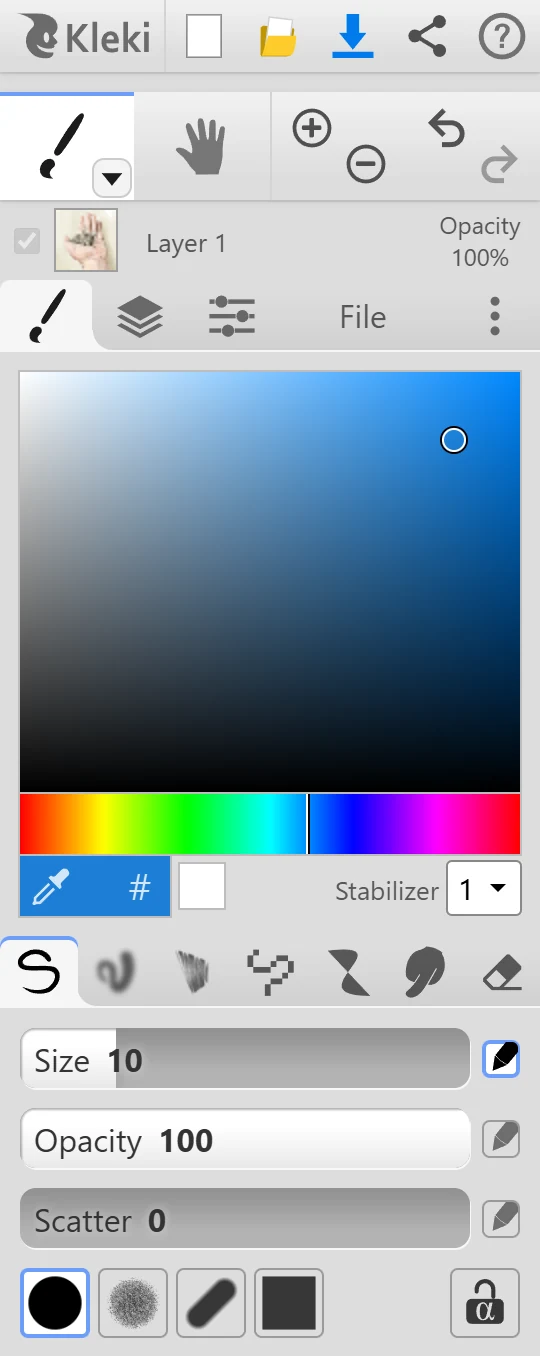
Press B or click  Brush, then pick a brush at the top of the brush tab.
The Brushes
Section titled “The Brushes”| Brush | Good for |
|---|---|
 Pen Pen | Sketching, inking, and general drawing. |
 Blend Blend | Painting with a watercolor feel. Colors bleed into each other. |
 Sketchy Sketchy | Loose sketches. Adds fine lines between nearby strokes. |
 Pixel Pixel | Pixel art with hard edges and patterns. |
 Chemy Chemy | Symmetric, abstract shapes. |
 Smudge Smudge | Smearing and softening paint that’s already there. |
 Eraser Eraser | Erasing. |
- Tips: Circle, Chalk (textured), Calligraphy (like a chisel-tip marker), and Square.
- Size, Opacity, and Scatter. Scatter spreads the paint around the stroke, like a spray.
- Size, Opacity, and Blending. Blending sets how much your color mixes with the colors already on the layer, like wet paint.
Sketchy
Section titled “Sketchy”- Size, Opacity, Blending, and Scale. Scale sets how far apart strokes can be and still get connected.
- Inspired by the Harmony drawing app.
- Size and Opacity, and a Circle or Square shape.
- Patterns: solid, dither patterns, lines, a checkerboard, and more.
- New Pattern lets you draw your own pattern. To edit a pattern you made, select it and click it again.
To see pixels sharply when zoomed in, turn on Always pixelated zoom in Settings.
- Draw a line and Chemy turns it into a shape. Fill fills the shape, Stroke draws its outline. The Size slider only applies to Stroke.
- Horizontal Symmetry and Vertical Symmetry mirror what you draw.
- Gradient fades the shape from your color to transparent.
Smudge
Section titled “Smudge”- Size and Opacity. Drag through paint to smear it.
Eraser
Section titled “Eraser”- Size and Opacity. Press E to switch to it.
- Transparent Background: on the bottom layer, the eraser normally paints white, like erasing on paper. Turn this on to erase to transparency instead. On all other layers, the eraser always erases to transparency.
Pixel and Chemy also have their own eraser toggle (Shift + E).
Pen Pressure
Section titled “Pen Pressure”If you draw with a stylus that supports pressure, sliders with a  pen icon can respond to it. Click the icon to turn pressure on or off for that setting. By default, pressure controls the size. Sketchy and Chemy don’t use pressure. See Input Devices.
Lock Alpha
Section titled “Lock Alpha” Lock Alpha (the padlock) lets you paint only where the layer already has paint. Empty areas stay empty. Use it to recolor line art, or to shade inside a shape without going over its edges.
Most brushes have it, and so do the Gradient and Shape tools. For more flexible control, use a clipping mask.
Straight Lines
Section titled “Straight Lines”- Shift + click draws a straight line from the end of your previous stroke to where you click. Click again with Shift to continue.
- Shift + drag keeps the stroke straight, horizontally or vertically.
For lines at any angle with a preview, use the Shape tool’s Line.
Brush Size and Switching Brushes
Section titled “Brush Size and Switching Brushes”- [ and ] make the brush smaller or larger.
- B switches back to your last brush. Press it again to cycle through the brushes.
- Sliders have extra controls, such as double-clicking to type a value. See Shortcuts.
If something is selected, brushes only paint inside the selection.