Clipping Mask
Clipping masks let you control which parts of a layer are visible by using the layer underneath it as a mask.
Create a clipping mask
Section titled “Create a clipping mask”- Select the layer you want to clip.
- Click the clipping mask toggle in the Layers panel. It looks like a downward arrow.
The active layer is now clipped to the layer underneath it. The layer underneath acts as the mask, and a downward arrow appears on clipped layers as an indicator.
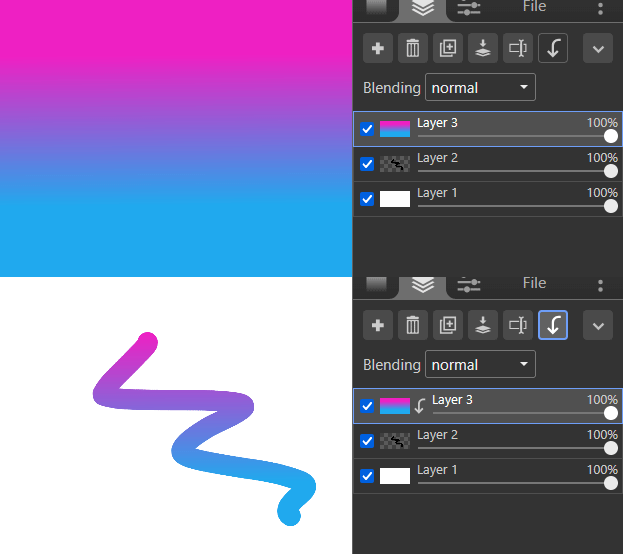
You can enable clipping on several layers in a row. The first layer below the chain of clipped layers acts as the mask for all of them.
If the mask layer is hidden or empty, the clipped layers will not be visible on the canvas.