Input Devices & Stabilizer
A pen or stylus is the best way to draw in Kleki. It’s the most fun, fast, and expressive input device. A mouse works well with the stabilizer. Touchpads and trackpads are not suited for drawing lines.
Whatever you use, zoom in and turn up the stabilizer to make your line work more precise.
 Pen
 Touch
 Mouse
 Trackpad
Pressure Sensitivity
Section titled “Pressure Sensitivity”If you use a stylus (a Wacom or XP-Pen tablet, an Apple Pencil, a Surface Pen, …) and your browser supports it, Kleki can use your pen pressure.
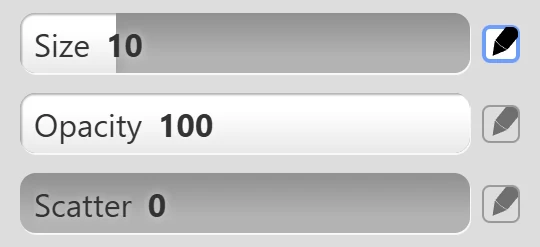
Brush sliders with a  pen icon next to them can respond to pressure. Click the icon to turn pressure on or off for that setting, for example for size or opacity. By default, pressure controls the size. Sketchy and Chemy don’t use pressure.
Video: Pressure sensitivity (1:53)
If pressure doesn’t work, see Troubleshooting.
On touch screens:
- Draw with one finger.
- Drag, pinch, or twist with two fingers to move, zoom, or rotate the view.
- Tap with two fingers to undo, and with three fingers to redo.
On phones, you can switch to a compact mobile view. All gestures are on the Shortcuts page.
Stabilizer
Section titled “Stabilizer”The stabilizer smooths your strokes. The line lags behind your pointer and averages your movement, so small wobbles disappear. It’s mostly used for clean final line art, and it makes drawing with a mouse a lot easier.
You find it in the brush tab, below the color picker. Set it from 0 (off) to 5 (strongest).
No stabilization feels the most direct. That’s good for fast sketching, and for large brushes, where jitter is less visible.